。
catalog close volume settings about/help

About

mokuro reader

Instructions:

  • Open catalog to load a volume
  • Navigate pages with:
    • menu buttons
    • Page Up, Page Down, Home, End keys
    • by clicking left/right edge of the screen
  • Click ✕ button to hide the menu. To bring it back, clip top-left corner of the screen.
  • Select "editable boxes" option, to edit text recognized by OCR. Changes are not saved, it's only for ad-hoc fixes when using look-up dictionary.
  • E-ink mode turns off animations and simulates display refresh on each page turn.
  • List of hotkeys
  • Load demo volume

See source code and detailed instructions on GitHub.

The demo contains excerpt from Manga109-s dataset. うちの猫’ず日記 © がぁさん

Catalog

Reset catalog

Drag and drop / choose files / choose directory / import from URL.

What to upload?

Uploading help

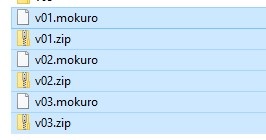
  • Upload one or more .mokuro files, each paired with respective volume contents.
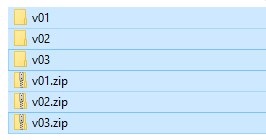
  • Volume contents can be either zip/cbz files or folders containing jpg/png images.
  • You can upload one folder containing multiple .mokuro + volume content pairs.
  • Uploading folders is not supported on mobile. You need to use "choose files" instead and upload .mokuro + zip/cbz pairs.

For example:
"import from URL" function allows importing manga from self-hosted or online file server. The URL must point to a .mokuro file or a directory containing .mokuro files. Each .mokuro file must be paired with respective volume contents. The server must include CORS headers allowing cross-origin requests.

Volumes imported from URL are linked from the server and are accessible as long as the server keeps hosting them, contrary to volumes uploaded from disk, which are stored in browser's storage.

Hotkeys

arrows turn pages / pan page
PageUp/PageDown turn pages
Home first page
End last page
Space next page
+ zoom in
- zoom out
0 reset zoom
, . navigate volumes
c catalog
s settings
h about/help
Escape close popup
x close volume
r reset volume settings
d single/double page view
j toggle "Japanese reading (right to left)"
p toggle "first page is cover"
Settings